NET360 Mobile Smart Security App
Mobile Access in 4 easy steps
1
Request Access
Make a request for access
2
Select Options
Get the features you want
3
Download
Download the NET360 Mobile App
4
Login
Login to the Mobile App
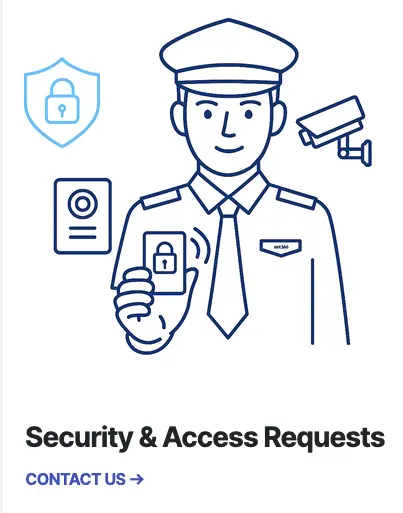
1. Request Access
Request access by raising a security & access request with us. Your details will be verified with the building manager.
Once verified and approved, we will advise you of next steps to purchase your license.
NET360 Mobile App
Get access to the NET360 Mobile App
Order Now- Intercom Calling
- Account management
- CCTV
- Building Documents
NET360 Mobile App
Get access to the NET360 Mobile App
Order Now- Intercom Calling
- Account management
- CCTV
- Building Documents
NET360 Mobile App
Get access to the NET360 Mobile App
Order Now- Intercom Calling
- Account management
- CCTV
- Building Documents
NET360 Mobile App
Get access to the NET360 Mobile App
Order Now- Intercom Calling
- Account management
- CCTV
- Building Documents
NET360 Mobile App
Access to the NET360 Mobile App
Order Now- Intercom Calling
- Account management
- CCTV
- Helpdesk
- Building Documents
2. Choose your option
You may choose from either the Intercom access and/or Wallet access.


3. Download the net360 Smart Security App
Download the NET360 Smart Security App from the Google Play Store or Apple App Store.
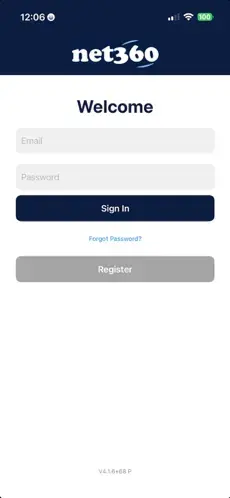
4. Sign In or Register your Account
If you already have an account, sign-in using your email and password. If you have forgotten your password, you can use the Forgot Password option.
If this is your first time using the net360 Smart Security App, select register and use the email addressed you gave us.
It is important that you use the email address you provided us with as this email is linked to your building profile
Everything you need
Once you have logged in, you will have access to several features.
Intercom
Use the Intercom feature to answer calls from guests at the front door. You can also allow them access to the building
Digital Access Card
Access your building via your Phone or Wallet in a safe and secure manner.
Internet Status
Get up to date status of your Internet connection at home.
CCTV
Access CCTV feeds to your building.
Helpdesk
Get help with NET360 by submitting tickets to us through this area.
Building Documents
Documentation about your building provided by building management and OC.
Top questions answered
In this section, you can address common questions efficiently.
Now you can add your building fob to Apple/Google Wallet and access your building with only your Android, iPhone and Apple Watch. It's easy, convenient, and private.
When your building access fob is added to your Wallet on your device or Watch, it’s stored on your device, which means Apple/Google doesn’t see the spaces you access or when. Your data is private and secure.
If your iPhone or Apple Watch is misplaced or lost, you should use Find My iPhone to suspend or deactivate your card in Apple Wallet. Instructions for Lost/Found Apple devices and Find My iPhone are located at https://support.apple.com/en-us/HT201472
Your net360 key in Apple Wallet will then be reactivated once your device is recovered. You can reactivate a found device that was suspended via iCloud.com.
For your Google phone, use the Find Hub to mark your device as lost or erase at https://www.google.com/android/find/about
Any Apple iPhone SE/8 or later with iOS 15 or later. Google Pixel 2 or later. Other Android Phones with NFC support running Android 12 or later. Apple Watch and Google Watch.